
Minecraft server.properties guide (Java 26.3)
7 min read
On this page
The Minecraft server.properties file in the main folder of your server stores many of its important configuration options. You can configure your server’s MOTD (the description shown to players in the server list), difficulty, max view distance, world seed, resource pack and many more important options.
It’s important to note that in the Minecraft 1.21.9 update, some server.properties options like allow-nether, enable-command-block and pvp changed to become gamerules, which can be easily configured using the /gamerule command in-game. More info on gamerules is available in this guide.
Minecraft server.properties cheat sheet
Here are some of the most useful Minecraft server.properties options at a glance:
| What you want to do | Setting | Default |
|---|---|---|
| Set a custom world seed | level-seed= |
Random |
| Change the world type | level-type= |
minecraft:normal |
| Change the server MOTD | motd= |
Lilypad MOTD |
| Change the difficulty | difficulty= |
easy |
| Change the default gamemode | gamemode= |
survival |
| Change spawn protection | spawn-protection= |
16 |
| Enable Hardcore Mode | hardcore= |
false |
| Change the maximum players | max-players= |
100 |
| Set a server resource pack | resource-pack= |
None |
| Change the view distance | view-distance= |
10 |
| Change the simulation distance | simulation-distance= |
4 |
| Change the world folder | level-name= |
world |
| Disable secure chat profiles | enforce-secure-profile= |
true |
| Change online mode | online-mode= |
true |
| Enable or disable the whitelist | white-list= |
true |
| Stop “kicked for flying” | allow-flight= |
true |
How to change server.properties
Changing a setting should be as simple as opening the server.properties file in your server’s Files tab, finding the line with the setting name on it, then editing the text after the = symbol. Sometimes there won’t be anything after the = because it hasn’t been set yet, and will therefore be using the default value.
We’ve listed below some of the options that you might want to change:
level-seed
Default: level-seed= (random)
A “seed” is a unique string of text which Minecraft uses when generating a world. This means if you find a world with terrain you like while playing singleplayer Minecraft, you can run the /seed command and copy the text to your clipboard, then paste it into your server.properties — see this guide for info on setting a custom seed.
level-type
Default: level-type=minecraft:normal
You can set your Minecraft server’s world to a variety of “level types” which include:
flat– a superflat world with no terrain, just grasslarge_biomes– a default world but with much larger biomes than usualamplified– a default world but the world gen height limit is increased, making for some pretty cool mountains
motd
Default: motd=A Minecraft Server\u00A7r\n\u00A7aHosted by lilypad.gg
The “MOTD” (Message Of The Day) is the two lines of text displayed below the server name in the server list:

The easiest way to create a fancy MOTD is using this website, where you can then copy and paste your generated MOTD into your server.properties – it can be customized using color codes, icons, and even gradients if you use a tool like this. Use \n if you want to go onto the second line.
difficulty
Default: difficulty=easy
Similar to the /difficulty command, this allows you to set your server’s difficulty, with the available ones being:
peaceful– hostile mobs don’t spawn, hunger is always full meaning health regenerates quicklyeasy– mobs don’t deal much damage, zombies can’t break doors, cave spiders don’t poison playersnormal– mobs deal more damage, hunger can decrease a lot, vindicators can break doorshard– mobs deal the most damage, hunger can kill players, zombies can break wooden doors
gamemode
Default: gamemode=survival
The default gamemode is set to survival when creating your server, but you’re welcome to set this to another one like creative, adventure or spectator. Setting players to Adventure Mode might be useful if you’re making an adventure map, and don’t want players destroying the world!
If you want players to be forced into this gamemode whenever they join the server (overriding if they were manually set to creative before, for example), set force-gamemode to true
spawn-protection
Default: spawn-protection=16
This is the number of blocks around your spawn point which will be protected from griefing by non-operators. If you want to work with your players to build a server spawn, it might be best to set this to 0 so spawn protection is disabled.
hardcore
Default: hardcore=false
If set to true, the server is set to “Hard” difficulty and players will be set to Spectator Mode when they die. For professional Minecraft players only!
max-players
Default: max-players=100
The maximum number of players who can play on your server at the same time. We don’t limit your server’s actual player slots, so you’re free to increase this number to whatever you wish (we set the default to 100), but keep in mind most modded servers can only handle up to a couple dozen concurrent players.
resource-pack
Default: resource-pack= (none)
Sets a resource pack for players to automatically download when connecting to the server. Learn more about how to set one up here.
view-distance
Default: view-distance=10
This controls the maximum “render distance” a user can have. Even if a user has the render distance on their client set to 16, it won’t display chunks beyond the number which you set here. Sometimes decreasing this number can help with lag issues caused by lots of players exploring new chunks at once (something that can be avoided by pregenerating your world).
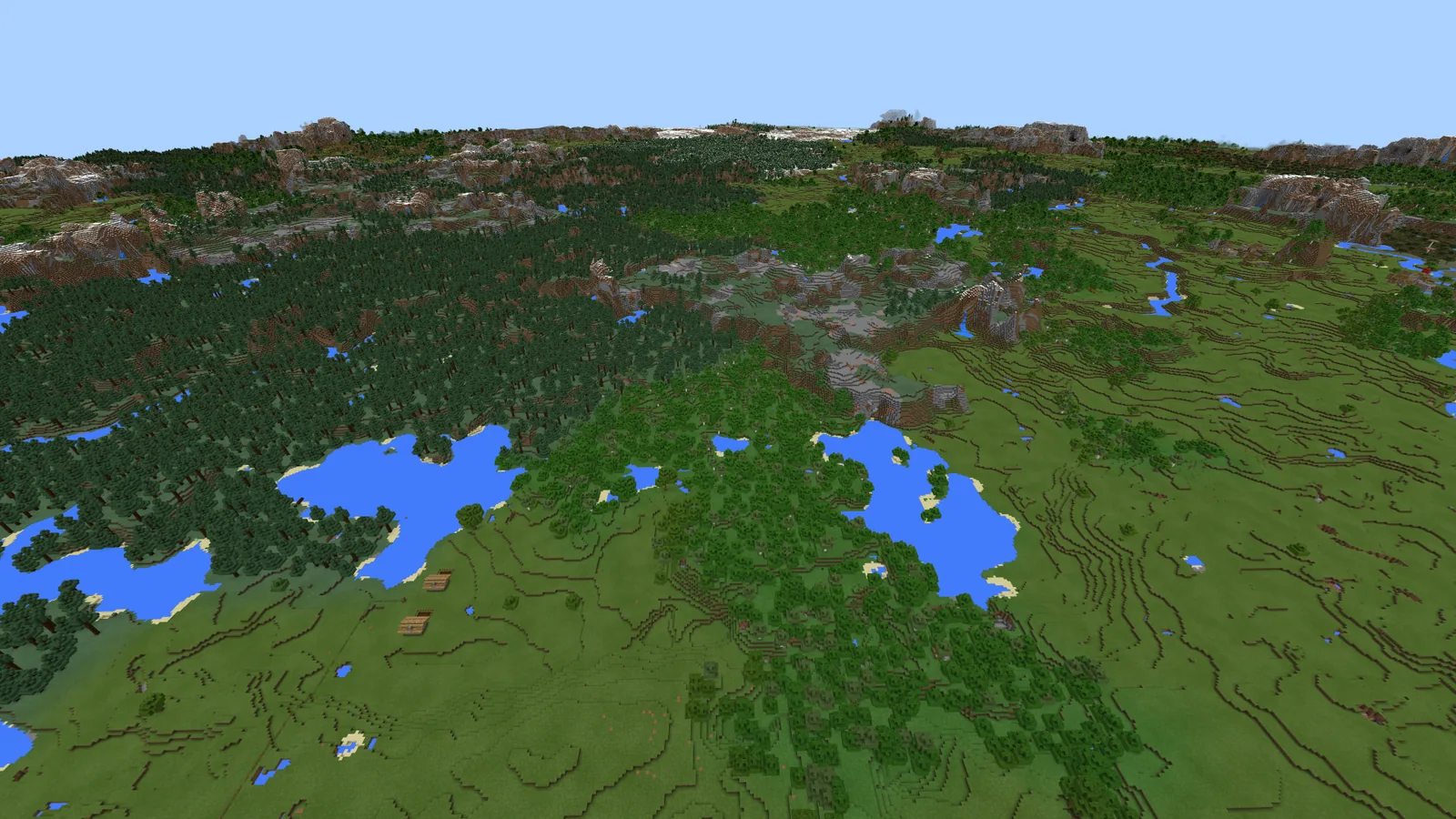
simulation-distance
Default: simulation-distance=4
This sets the maximum “simulation distance” which is the number of chunks in each direction of the player in which entities are loaded. Again, this limit is set on the server so clients’ simulation distances above this number won’t have any effect. Lowering this may help with entity lag issues, but will mean players will have to be close to any mob farms they’ve built otherwise they won’t activate/trigger mob spawns.
level-name
Default: level-name=world
This is set to world by default, the name of the world folder on the server. If you have multiple worlds and want to switch between them easily, you can have multiple world folders with different names in the main folder of your server, then set this setting to the name of the world which you want to load on the next server start.
enforce-secure-profile
Default: enforce-secure-profile=true
Minecraft 1.19.1 introduced a chat reporting system, which also came with something called “chat signing” ensuring messages sent by players are legitimate, and were actually sent by their account. Disabling this means chat messages sent on your server cannot be reported, however this can sometimes solve issues where players with certain mods on their client are not able to join your server.
online-mode
Default: online-mode=true
Setting this to false can allow “cracked” players running illegal/illegitimate versions of Minecraft to join your server, but this can pose a major security risk as it means anyone can join with the username of another player, impersonating their account and potentially griefing the server. We highly recommend keeping this set to true and will not provide support for queries specific to cracked servers as they violate Mojang’s EULA.
If you’re running your server behind a Velocity/BungeeCord proxy, you will most likely have to set your server to offline mode, so ensure adequate protection (a forwarding secret ideally) is set up so players can’t join directly. Please get in touch with us if you’re setting up a network so we can firewall your backend servers accordingly.
white-list
Default: white-list=true
We enable the whitelist by default and recommend you keep it enabled for private servers with friends. This avoids unwanted players from joining and griefing your server, which can happen even if you don’t share your server’s IP outside of your friend group! Use the /whitelist command to configure your whitelist.
allow-flight
Default: allow-flight=true
We enable this by default to prevent players being “kicked for flying” while in minecarts/boats/other entities. Contrary to what the name suggests, keeping this enabled won’t allow players to fly around as if they’re in Creative Mode, even if they are just in Survival.
…and many more
There are many server.properties options to configure, and you can find the full exhaustive list on the Minecraft Wiki. There are also many options to configure in your server’s gamerules — click here for more info.
Still stuck?
Just get in touch! We're happy to help with any issues
Something not working? Check our status page to see if it's on our end