
Access your server’s files with SFTP
1 min read
Although we offer a powerful web-based file manager and editor, available via the Files tab of your panel, some customers may prefer to access their server via SFTP. This works similarly to FTP access on other providers, and will require either of the below software to work:
- WinSCP (feature-packed but only for Windows)
- FileZilla (the classic, still works great)
-
Head to our game panel at panel.lilypad.gg and select your server.
-
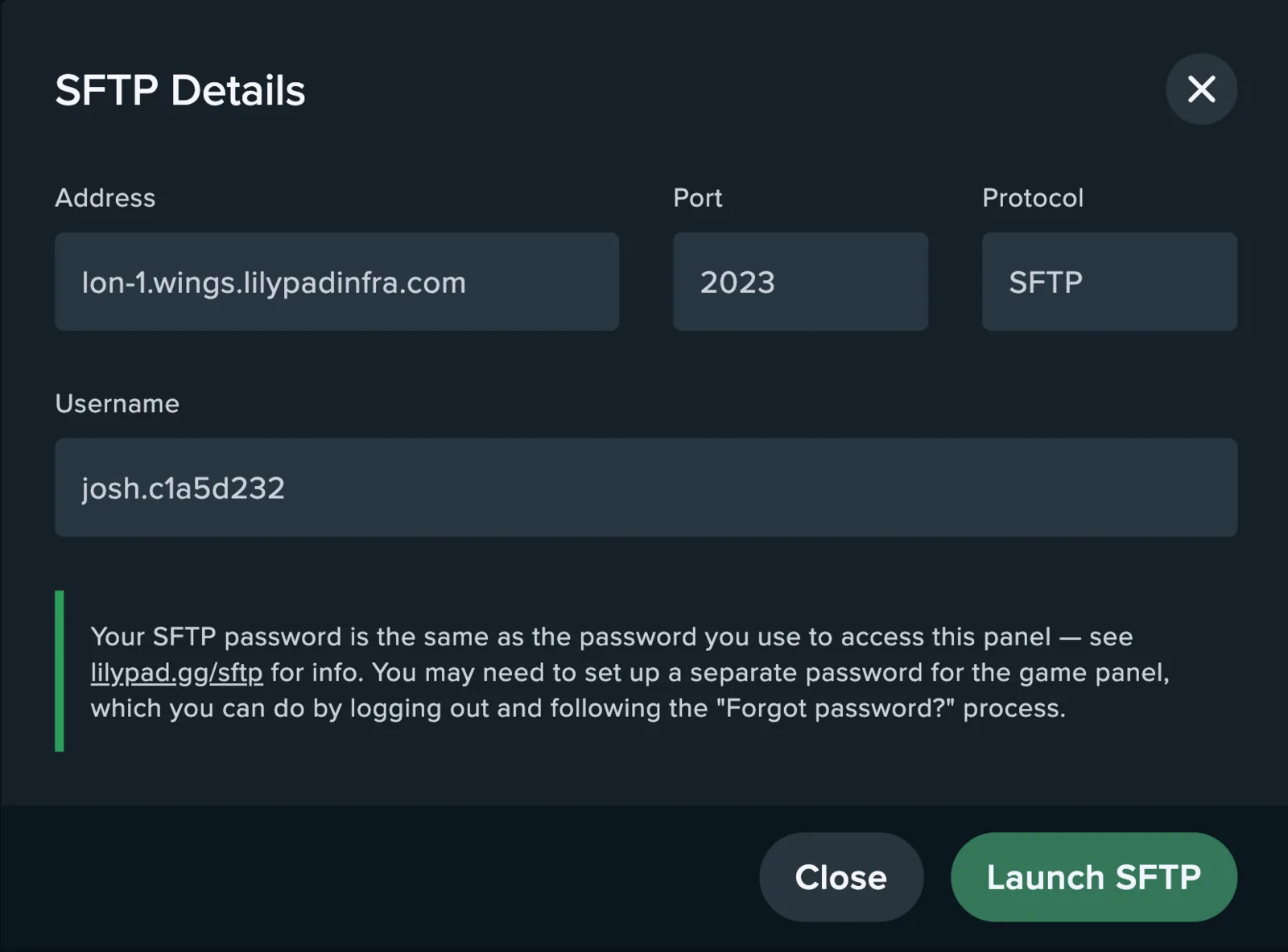
Select the Files button in the sidebar, then the SFTP Details button in the top-right:
-
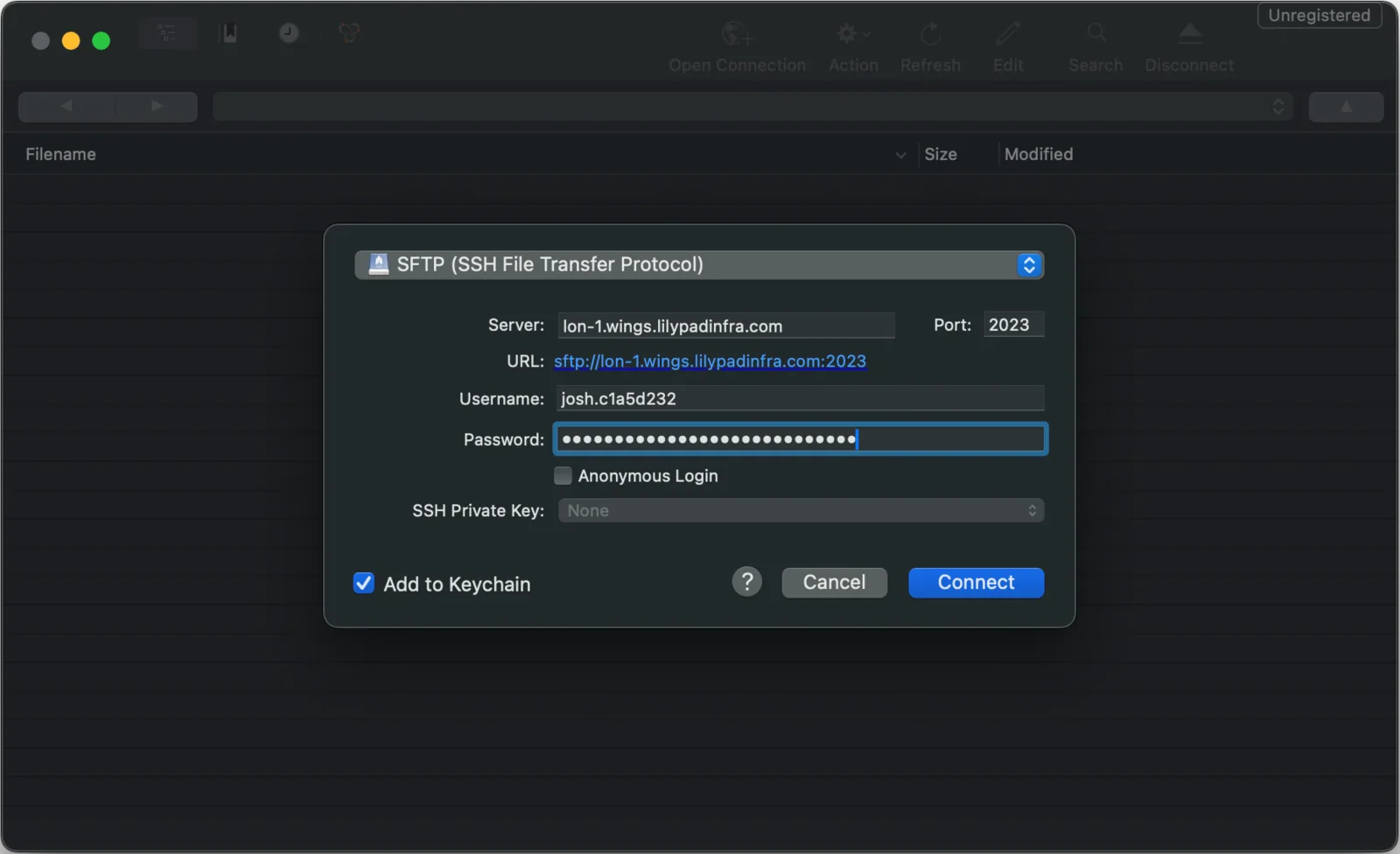
Create a new server/connection in your SFTP client of choice, and enter the details:
- Ensure the “Protocol” is set to SFTP, not FTP or FTPS which are different protocols
- The “Server” or “Host” will be the “Address” from your control panel, although you may have to enter the port
2023into a separate field if it doesn’t automatically populate - The “Username” will be the one shown in the panel, and the “Password” will be your game panel password
-
You can now move files between your server and your personal computer as needed!
More Minecraft guides
- What mods do you pre-install on my Fabric server?
- Create and use a MySQL database on your server
- Which Minecraft proxy software is the best?
- Getting started with your Velocity proxy
- Connect your Minehut external server to Lilypad
- Getting started with your Minecraft server
Still stuck?
Just get in touch! We're happy to help with any issues
DiscordOpen a support ticket or ask the communityContact formSend us a message and we'll reply by email
Something not working? Check our status page to see if it's on our end