
Set up automatic backups for your Minecraft server
1 min read
We’ve made it super easy to set up automatic backups for your Minecraft server to ensure peace of mind.
-
Head to our game panel at panel.lilypad.gg and select your server.
-
Select the Settings button in the sidebar and set your server’s time zone to whichever is easiest for you to understand.
-
Go to the Schedules tab, then press the Create Schedule button.
-
Set the name of the schedule to something like “Daily backup” then select the Every day at 06:00 button. This will pre-fill the values below with the ones required to create a backup of your server at 6AM each day, in the time zone you set via the Settings tab. You can change the number in the Hour field to a different time if you wish, like
0if you wish to create a backup every day at midnight.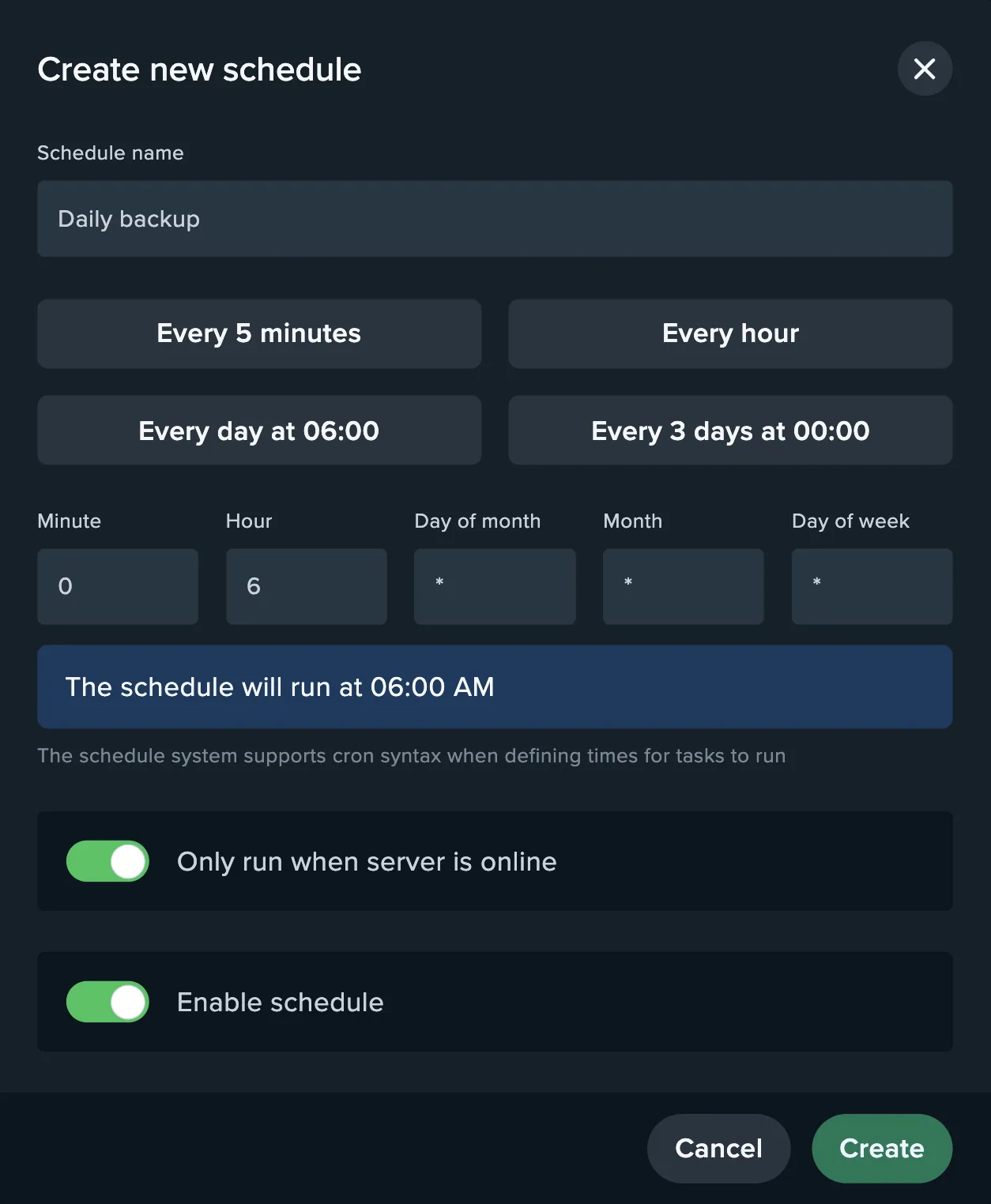
-
Press Create Schedule at the bottom, then select the schedule you just created followed by the Create Task button.
-
Click on the Action dropdown and select Create backup, then finally the Create Task button.
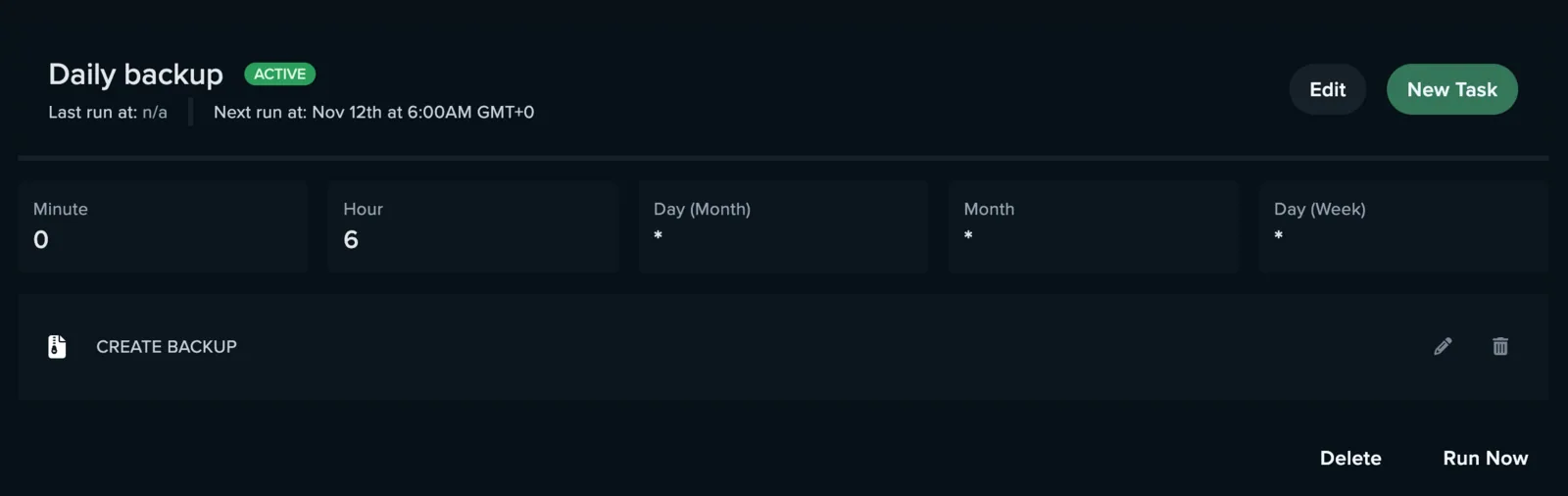
Your daily backup is now set up! You can find backups that are generated via the Backups section of your panel.
Still stuck?
Just get in touch! We're happy to help with any issues
Something not working? Check our status page to see if it's on our end